 On Ice
Guides / Blocking shops
How to block Amazon on iPhone (the app and Safari)
Amazon lives in two places on your phone: the app, and amazon.com in Safari. Block one and the other is still a tap away. Here are three ways to cover both, from lightest to firmest.
Before you start, it helps to know what you want the block to do. If you want Amazon gone for good, skip to option 3. If you still need it for the odd real purchase and just want to stop the 1 a.m. orders, options 1 and 2 are closer, and the last section is closer still.
Option 1: Put a daily time limit on the app
This uses Screen Time, which is already on your iPhone. It doesn't block Amazon outright. It gives you a daily allowance and then covers the app.
- Open Settings and tap Screen Time. If it has never been set up, turn on App & Website Activity first.
- Tap App Limits, then Add Limit.
- Open the Shopping & Food category and tick Amazon.
- Scroll to the bottom of the same list, open Websites, tap Add Website and type amazon.com. Now one limit covers the app and the site together.
- Tap Next, set the time (the smallest is 1 minute a day) and tap Add.
Where it stops working. When the time runs out, iOS covers the app with a Time Limit screen and a button under it. Tap the button and you are offered one more minute, a 15 minute reminder, or Ignore Limit For Today. That last one is a single tap, and at 1 a.m. almost everyone taps it.
You can close that door by setting a Screen Time passcode (Screen Time, then Lock Screen Time Settings) and switching on Block at End of Limit for the limit. It only really works if someone else chooses the passcode, because you can't forget a number you picked yourself.
Option 2: Block amazon.com in Safari completely
This one is a real block, with no allowance and no ignore button. It only covers the website, so pair it with option 1 or 3 for the app.
- Open Settings, tap Screen Time, then Content & Privacy Restrictions, and turn the switch on.
- Tap Content Restrictions. On newer versions of iOS this row is called App Store, Media, Web & Games.
- Tap Web Content and choose Limit Adult Websites.
- Under Never Allow, tap Add Website and enter amazon.com. If you shop on another country's Amazon, add that address too.
Open amazon.com in Safari now and you get a page saying the site is restricted. It applies to other browsers on the phone as well.
Two side effects to know about. Choosing Limit Adult Websites also turns on Apple's own adult content filter, and it removes Private Browsing from Safari. Most people don't mind, but it surprises some.
Option 3: Delete the app and stop it coming back
Deleting the app takes a second: press and hold the Amazon icon, tap Remove App, then Delete App. The trouble is that reinstalling takes about twenty seconds. To stop that:
- In Settings, go to Screen Time, then Content & Privacy Restrictions.
- Tap iTunes & App Store Purchases, then Installing Apps, and choose Don't Allow.
The App Store icon disappears from your Home Screen until you switch this back. That is the catch: you can't install anything while it is on, including app updates you actually want. Combine it with option 2 and Amazon is properly gone from the phone.
Which one should you use?
| Method | Covers | How easy to undo in the moment |
|---|---|---|
| App limit | App and website | One tap, unless someone else holds the passcode |
| Never Allow list | Website only | About six taps through Settings |
| Delete and block installs | App only | About six taps, then a reinstall |
Two smaller things help whichever you pick. Turn off Amazon's notifications (Settings, Notifications, Amazon, then switch off Allow Notifications), because a deal alert is an invitation. And unsubscribe from the marketing emails the next time one arrives.
If you don't want Amazon gone, just slower
All three options above treat Amazon as the problem. For most people the problem is narrower: the order placed late, tired, for something that didn't matter by morning. A hard block also blocks the day you need printer ink.
This is the gap we built On Ice for. You pick Amazon in Apple's picker and add amazon.com as a website. From then on, opening either one shows a shield first: Pause before you buy. You tap Note it, type what you came for and a rough price, and it goes on a list for 24 hours. Tomorrow the app asks once whether you still want it.
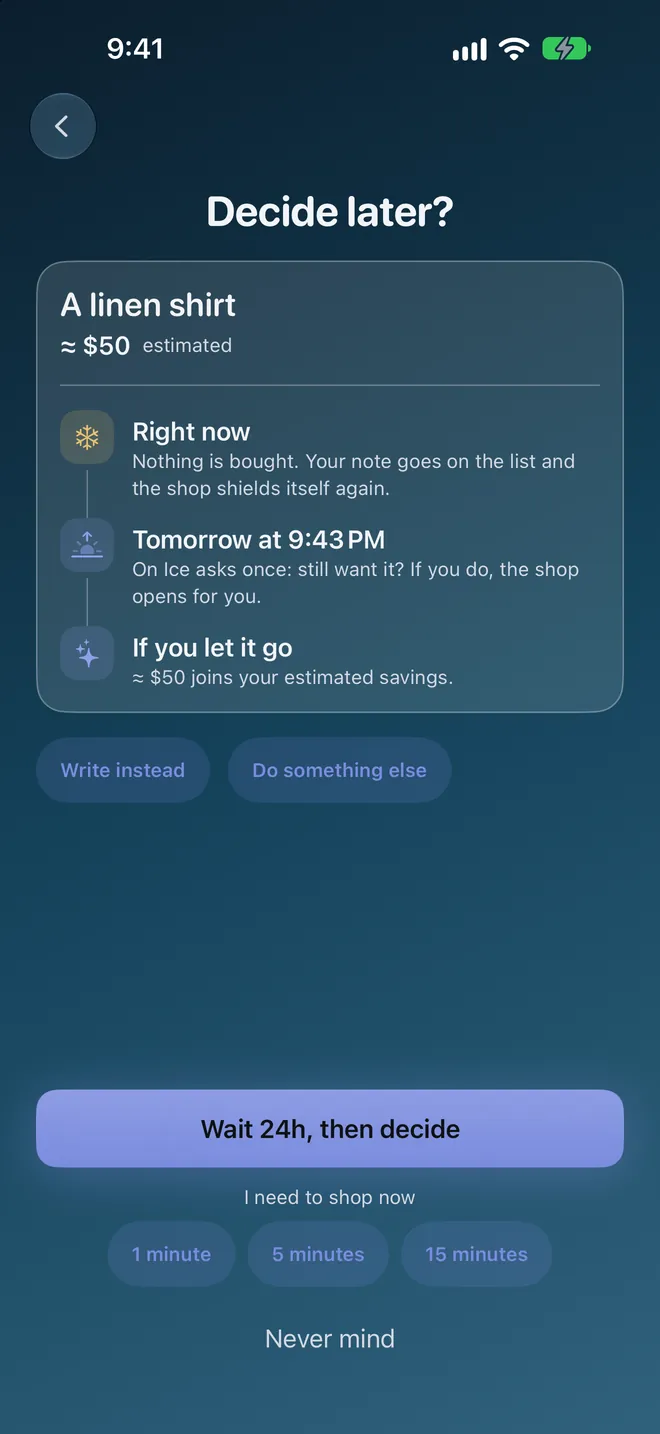
It is deliberately not a wall. If you need the ink today, I need to shop now opens the shop for a few minutes. What changes is that the easy path is now "write it down" instead of "buy it", and that turns out to be enough most nights.
The free version covers one app and one website, which is exactly the Amazon app and amazon.com.