 On Ice
Guides / Blocking shops
How to block shopping websites on iPhone
Deleting a shopping app doesn't do much if the website opens in Safari in two taps. Your iPhone can block sites by address. Here is how, and what each method costs you.
There are two built in ways to do this, and they behave differently. One is a full block. The other is a daily allowance. Pick by how firm you want to be.
The full block: the Never Allow list
- Open Settings and tap Screen Time.
- Tap Content & Privacy Restrictions and turn the switch on.
- Tap Content Restrictions. On newer versions of iOS the row is called App Store, Media, Web & Games.
- Tap Web Content, then choose Limit Adult Websites.
- Under Never Allow, tap Add Website and type the shop's address. Repeat for each shop.
From now on those sites show a "restricted" page in Safari and in other browsers on the phone.
What it costs you. Limit Adult Websites switches on Apple's adult content filter and removes Private Browsing from Safari. And because the block is total, the day you really do need that shop you have to go back through Settings and delete the entry, which most people then forget to put back.
The allowance: a time limit on a website
- In Settings, tap Screen Time, then App Limits, then Add Limit.
- Scroll to the bottom of the list and open Websites.
- Tap Add Website and enter the address. You can add several sites to the same limit, and apps too.
- Tap Next, set a daily time, and tap Add.
When the time is used up, Safari covers the site until midnight.
What it costs you. Nothing much, and that is the problem. The cover has a button that offers Ignore Limit For Today. Unless someone else sets a Screen Time passcode for you, the limit is a suggestion.
Don't use "Allowed Websites" for this
In the same Web Content screen there is a third choice, Allowed Websites (older versions call it Allowed Websites Only). It blocks the whole internet except a short list. It is designed for a child's device and is far too blunt for an adult trying to stay off three shops.
A softer option for shops you still need
Both methods above are built for keeping something out. Neither is built for the more common case: a shop you use for real things, and also use too much when you're bored.
That middle case is what On Ice is for. You add the website's address, and Safari shows a shield before the shop loads. Tap Note it, say what you wanted and roughly what it costs, and it waits on a list for 24 hours. Nothing is bought, and tomorrow you get asked once if you still want it.
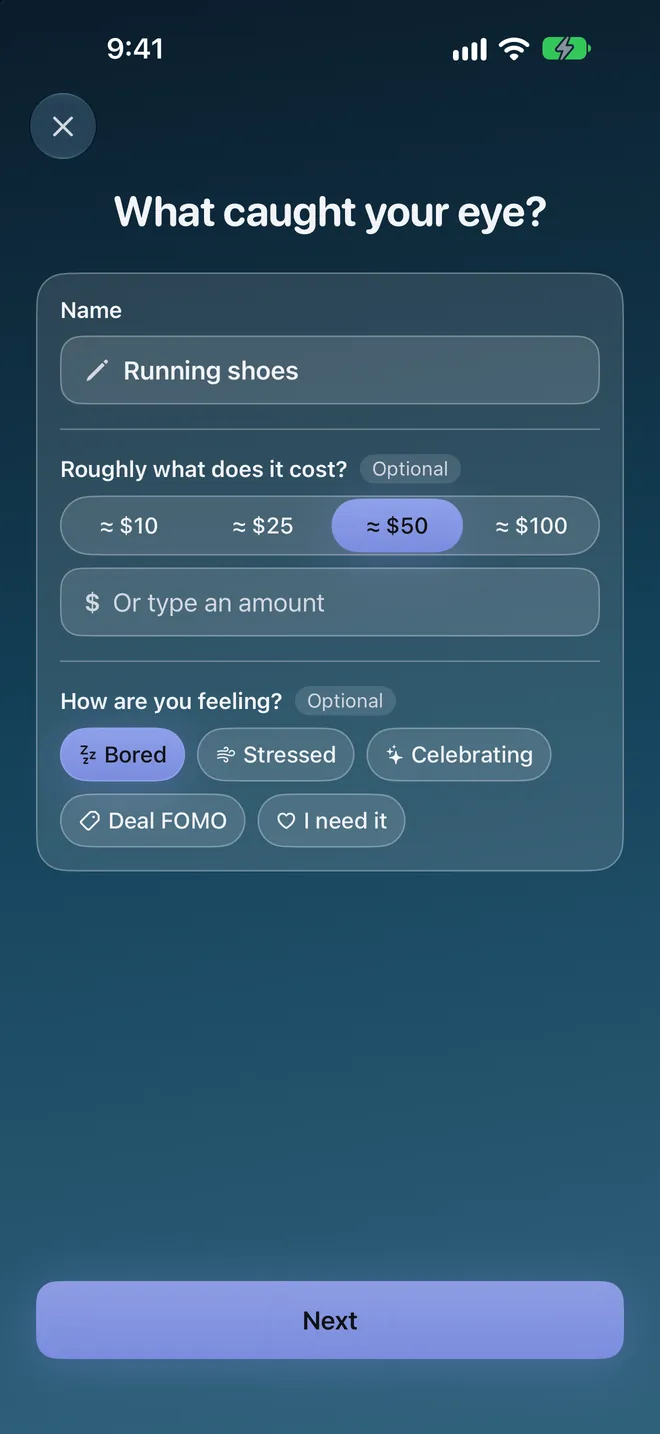
If you need the shop now, it opens for 1, 5 or 15 minutes and then shields itself again without you doing anything. So the block never becomes the thing you switch off and forget.
A shop's app and its website are two separate things on an iPhone, in On Ice and in Screen Time alike. Whatever method you use, cover both. We wrote up the app side, with Amazon as the example, in how to block Amazon on iPhone.